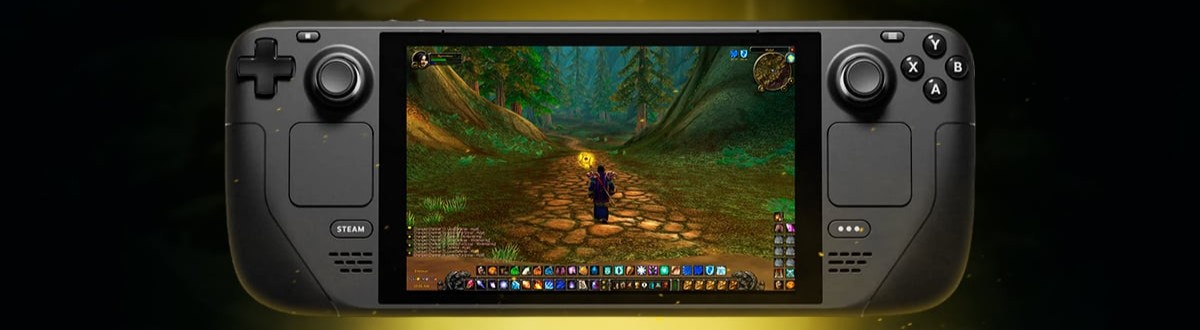
World of Warcraft can be played on Steam Deck, but WoW is not distributed through Steam. On SteamOS, the usual setup is to install the Battle.net desktop app as a non Steam game and run it with Proton. The Steam Deck can handle questing, open world content, dungeons, and much of the regular WoW experience, while large cities and raids can produce much lower frame rates. This guide explains how to install WoW, configure the controls, choose practical graphics settings, and understand what works on Steam Deck.
From this guide you will learn:
- World of Warcraft on Steam Deck
- How to Install WoW on Steam Deck
- Steam Deck Performance and Settings
- WoW Controls on Steam Deck
- World of Warcraft on Steam
- WoW on Steam Charts
- MMORPGs Like WoW on Steam
 For players who want to spend less time on repetitive progression, Gamingcy WoW boost services can help with leveling, gear, achievements, and other in game goals.
Can You Play World of Warcraft on Steam Deck?

 Yes, World of Warcraft runs on Steam Deck. SteamOS is Linux based, so the Battle.net Windows launcher is normally run through Proton. Blizzard provides support for Battle.net games on Steam Deck through its support documentation, but WoW is still distributed through Battle.net rather than through the Steam store.
Steam Deck does not need a native Steam version of WoW. The non Steam game feature lets you add the Battle.net installer or launcher to Steam and use a Proton compatibility tool. The exact Proton version that works best can change after Battle.net or SteamOS updates, so Proton Experimental is a useful starting point rather than a permanent requirement.
Blizzard also supports gamepad input in WoW. Blizzard has added and updated the gamepad API for controllers, touchpads, and gyroscopes, while addons such as ConsolePort can provide a more complete controller interface.
WoW does not have a Steam Deck Verified rating because it is not a Steam store game. Steam Deck compatibility labels apply to games distributed through Steam, so they do not provide an official rating for a Battle.net installation.
How to Install World of Warcraft on Steam Deck

The easiest approach is to install Battle.net in Desktop Mode and add the launcher to Steam. The process uses Steam’s non Steam game feature and Proton. Proton Experimental is a practical first choice, but another Proton version may work better after a future launcher or SteamOS update.
Step 1: Switch to Desktop Mode
Press the Steam button, open Power, and select Switch to Desktop. Steam Deck will switch from Gaming Mode to the Linux desktop.
Step 2: Download Battle.net
Open Firefox and visit the official Blizzard Battle.net website. Download the Windows Battle.net installer.
Step 3: Add the installer to Steam
Open Steam in Desktop Mode. Select Add a Game, then Add a Non Steam Game. Browse to the downloaded Battle.net installer and add it to the Steam library.
Step 4: Select a Proton version
Find the Battle.net installer in Steam, open Properties, select Compatibility, enable Force the use of a specific Steam Play compatibility tool, and start with Proton Experimental.
Step 5: Install Battle.net
Launch the installer from Steam and complete the Battle.net installation. The installer creates a Proton prefix containing the Windows files needed by Battle.net.
Step 6: Add Battle.net to Steam
After installation, locate Battle.net.exe inside the Proton prefix created for the installer. Add Battle.net.exe to Steam as a non Steam game. The exact compatdata folder number can differ between installations, so use the prefix created during your installation instead of copying a fixed folder number from another Steam Deck.
Step 7: Force Proton for Battle.net
Open the Properties for the new Battle.net shortcut and enable the same Proton compatibility setting. Proton Experimental is a good starting point. If Battle.net stops working after an update, try another installed Proton version before changing the entire installation.
Step 8: Install WoW
Launch Battle.net through Steam and sign in to your Blizzard account. Select World of Warcraft and install the version you want to play. Retail and Classic versions are managed through the same Battle.net launcher.
Step 9: Return to Gaming Mode
Switch back to Gaming Mode after the installation is complete. Launch Battle.net from the Steam library and start World of Warcraft from the launcher.
Step 10: Add WoW directly to Steam
You can also add Wow.exe from the installed World of Warcraft folder as a non Steam game. This can make launching the game more convenient because Steam can start WoW directly instead of opening the Battle.net interface first.
Common installation problems
| Problem | What to try |
| Battle.net does not start | Try Proton Experimental or another recent Proton version. Restart Steam after changing the compatibility tool. |
| Login window is blank | Restart Battle.net and try another Proton version. Using a physical keyboard can make the first login easier. |
| Battle.net loops during startup | Close Battle.net completely and restart it. If the problem started after an update, test another Proton version before reinstalling. |
| WoW does not launch | Check that Wow.exe is using the same Proton prefix and that the Battle.net installation is still accessible from that prefix. |
Guide updated in September 2026.
World of Warcraft Steam Deck Performance and Best Settings

 WoW performance on Steam Deck depends heavily on the location and number of players on screen. Recent testing of Midnight shows that WoW can run above 60 FPS in lighter open world situations, while crowded areas and large events can cause substantial drops. Steam Deck HQ reported results ranging from around 20 FPS in extreme situations to 90 FPS in lighter scenes.
Community results are similar. Recent Steam Deck players have reported around 40 to 60 FPS after tuning the settings, with lower results in crowded areas. Another 2026 report described stable 60 FPS during normal questing and lower performance in cities. These results are useful as practical expectations, but they are not fixed benchmarks because WoW performance changes with the expansion, zone, addons, and player density.
| Content | Practical FPS range | What affects performance |
| Open world questing | 50 to 70+ FPS | Zone complexity, view distance, effects, and player density |
| Dungeons | 40 to 60 FPS | Combat effects, group size, and graphics settings |
| Busy cities | 30 to 50 FPS | Large numbers of players and CPU load |
| Large raids and events | 20 to 40 FPS | Player count, spell effects, addons, and encounter complexity |
Recommended settings:
- Start with graphics quality around 5 or 6.
- Lower Shadow Quality if cities or large encounters cause frame drops.
- Set Particle Density to Fair or Low when playing raids.
- Keep View Distance at a moderate level.
- Use the Deck’s native 1280 × 800 resolution.
- Test 40 FPS or 45 FPS limits if you prefer consistent frame pacing and longer battery life.
- Reduce addon usage during raids if CPU performance becomes a problem.
Classic can be easier to run. Older WoW versions generally place less load on the Steam Deck than current Retail content, although the exact difference depends on the Classic version, zone, addons, and settings. Steam Deck users have also reported smooth leveling and dungeon play in Classic.
Battery life depends on your performance target. A lower FPS limit and reduced power settings can extend play time, but battery duration varies between the LCD and OLED Steam Deck models, display brightness, Wi Fi usage, game settings, and system power limits. A fixed three or four hour figure should not be treated as a universal WoW result.
Controls: Playing WoW on Steam Deck

WoW supports controller input directly. Blizzard has expanded the gamepad API so addons can use controller buttons, touchpads, gyroscopes, and combined controller and mouse input.
ConsolePort is still useful for Steam Deck. The addon reorganizes the interface and provides controller focused bindings, targeting tools, action bars, and menus. It is not required to make controller input work, but it can make WoW much easier to use on a handheld.
Installing ConsolePort:
- Install an addon manager that supports your WoW installation.
- Select World of Warcraft and locate the same WoW folder used by Battle.net.
- Search for ConsolePort and install the addon.
- Start WoW and configure the controller layout in ConsolePort.
- Test your movement, targeting, action bars, camera, and menu controls before starting group content.
Useful addons for Steam Deck:
| Addon | Purpose |
| ConsolePort | Controller bindings and a controller focused interface |
| Immersion | More readable quest and dialogue interaction |
| Opie | Radial menus for mounts, items, professions, and other actions |
| Bugsack and BugGrabber | Helps identify Lua errors caused by addons |
| EnhancedQoL | Additional quality of life controls that can reduce menu interaction |
Steam Deck is strongest for questing and regular dungeons. High Mythic+ keys, serious rated PvP, and high difficulty raids are possible, but the smaller screen and controller input make precise targeting, communication, and complex keybinds harder than on a traditional keyboard and mouse setup.
For more information about controller focused WoW gameplay, see our guide on WoW on PS5 and console.
Is World of Warcraft on Steam?

 No, World of Warcraft is not distributed through Steam. WoW is handled through Blizzard’s Battle.net ecosystem. You can still add the WoW executable or Battle.net launcher to Steam as a non Steam game.
Steam does not sell WoW subscriptions or game access. World of Warcraft accounts and subscriptions are managed through Battle.net. The Starter Edition also allows players to access the game without purchasing a separate Steam copy.
Other Blizzard games are available on Steam. Overwatch 2 and Diablo IV are examples of Blizzard titles that have been released on Steam, but their presence on Steam does not mean that WoW has moved to the platform.
 To play WoW on Steam Deck, use Battle.net rather than looking for a Steam copy. Download Battle.net, install the launcher through Proton, install WoW, and then add the launcher or WoW executable to Steam if you want Steam’s interface and controller configuration.
Adding WoW to Steam

You can add World of Warcraft to your Steam library as a non Steam game. This does not convert WoW into a Steam game and does not give the account Steam achievements or Steam cloud saves.
On PC:
- Open Steam and select Add a Game.
- Select Add a Non Steam Game.
- Browse to the World of Warcraft installation folder.
- Select Wow.exe and add it to the library.
- Launch WoW through the new Steam shortcut.
On Steam Deck, the same approach can be used after installing WoW through Battle.net. Adding Wow.exe directly can make launching the game faster.
Steam features can include:
- Steam Overlay
- Steam Input controller configuration
- Steam screenshots
- Steam performance display
- Game Recording where supported by the current Steam client
- Steam Link streaming
Non Steam games have limitations. Steam achievements and Steam cloud saves do not apply to WoW simply because the executable was added to Steam. Some Steam features can also behave differently with a non Steam application.
WoW on Steam Charts and the Steam Machine

World of Warcraft does not have a Steam Charts player count. WoW is not distributed through Steam, so Steam Charts cannot provide an official concurrent player number for the game. Blizzard also does not publish a public live concurrent player counter for WoW.
Third party WoW sites use different activity metrics. Raid logs, character activity, PvP participation, and other datasets can provide useful estimates, but they should not be presented as official WoW concurrent player numbers.
The Steam Machine is no longer a future product. Valve’s Steam store currently lists Steam Machine with a June 22, 2026 release date. Steam Machine uses SteamOS, but WoW is still a Battle.net application rather than a Steam game.
WoW should not be described as automatically compatible with Steam Machine. The same Linux and Proton approach used on Steam Deck can be relevant to other SteamOS hardware, but the absence of an official Steam version means there is no Steam Verified rating for WoW. Compatibility should be tested on the specific hardware and SteamOS version.
MMORPGs Like World of Warcraft on Steam

| Game | What makes it similar to WoW | Steam |
| The Elder Scrolls Online | Large open world, quests, dungeons, PvP, classes, and long term character progression | Available |
| Final Fantasy XIV | Story driven MMO with raids, dungeons, jobs, crafting, and strong controller support | Available |
| Guild Wars 2 | Open world events, structured PvP, fractals, raids, and horizontal progression | Available |
| New World | Action combat, open world exploration, professions, PvP, and group content | Available |
| Black Desert | Action combat, open world activities, professions, gear progression, and PvP | Available |
| Star Wars: The Old Republic | Story driven quests, classes, group content, companions, and a large MMO world | Available |
WoW on Steam Deck FAQ
Is World of Warcraft on Steam?
World of Warcraft is not distributed through Steam. WoW is managed through Battle.net, but you can add Battle.net or Wow.exe to Steam as a non Steam game.
Can you play WoW on Steam Deck?
Yes. World of Warcraft can run on Steam Deck through Battle.net and Proton. The setup requires installing the Battle.net launcher in Desktop Mode and adding it to Steam.
Does WoW support controllers?
Yes. World of Warcraft has controller support and Blizzard provides a gamepad API for controllers, touchpads, and gyroscopes. ConsolePort can provide a more complete controller focused interface for Steam Deck.
Will you get banned for playing WoW on Steam Deck?
Using Steam Deck or Proton to run WoW is not the same as using automation or input broadcasting. Blizzard’s published policy focuses on prohibited automation and input broadcasting, not on ordinary controller or compatibility layer use. Do not use software that automates gameplay or mirrors inputs across multiple WoW clients.
How many FPS does WoW get on Steam Deck?
There is no single FPS number for WoW on Steam Deck. Recent testing shows that open world content can run above 60 FPS, while crowded areas and large events can drop much lower. Current reports show results ranging from around 20 FPS in demanding situations to 90 FPS in lighter scenes.
Is Steam Deck good enough for endgame WoW?
Steam Deck is suitable for questing, world content, and regular dungeons. Raids and high Mythic+ keys are also possible, but lower performance during large encounters and the limits of controller input make a keyboard and mouse setup more comfortable for demanding endgame content.
Can I add WoW to my Steam library?
Yes. Add Wow.exe or Battle.net as a non Steam game. This can give you access to Steam Input, the Steam Overlay, screenshots, and other Steam features, but WoW will remain a Battle.net game and will not receive Steam achievements or Steam cloud saves.
Will WoW come to Steam?
There is no confirmed Steam release for World of Warcraft at the time of this guide update. Other Blizzard games have appeared on Steam, but WoW continues to use Battle.net.
Does WoW Classic run better on Steam Deck?
Older WoW versions generally require less graphical and CPU resources than current Retail content, so Classic can be easier to run on Steam Deck. Actual performance still depends on the Classic version, zone, addons, and graphics settings.
